
I have written about average, mean, median, mode, here. But you can also get the average (mean) of numbers based on conditions. So maybe you want the average sales from one region, or average cost of a particular product in the last year.
This is where AVERAGEIF and AVERAGEIFS come in to play.
AVERAGEIF works with the same type of input as SUMIF which I have written about here.
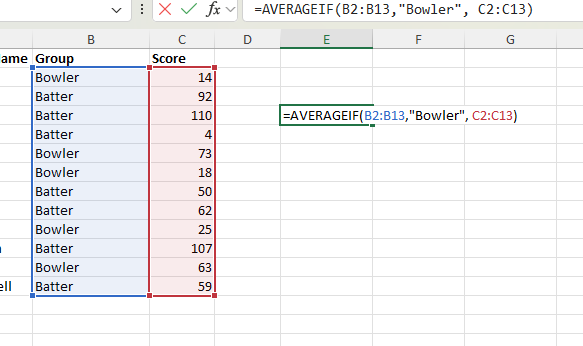
Get the average of the score if the group is Bowler.
Structure is AVERAGEIF(range, criteria, [average_range])
Range (first input) is normally a group of cells. The criteria (second input) is the condition these cells need to meet to be included in the calculation. The third input is optional – hence the square brackets. If the range (first input) is ALSO the numbers you want the average of, then you don’t need to supply the [average_range], otherwise you do.
In our example we did need to supply the [average_range]. See below for an example where we can leave out the optional input.
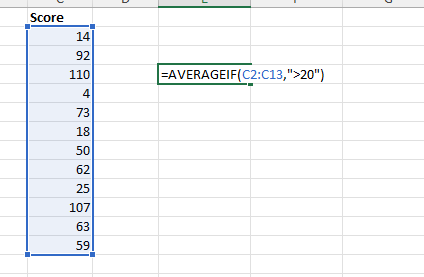
In the example above, because the range is the same as the numbers we want the average for, we don’t need the third input. Find the average of the numbers that are bigger than 20. Note you have to put this type of input in quote marks.
If you have more than one condition that you want to meet in order for the number to be included in the calculation, then you can use AVERAGEIFS.
AVERAGEIFS(average_range, criteria_range1, criteria1, [criteria_range2, criteria2], …)
Note that the order of input is different for the AVERAGEIFS. Three inputs are compulsory and the average range comes first! Average range, criteria range 1 and criteria 1. You can, optionally, specify up to 127 criteria! (But please don’t, there are better options if you are planning to do that!)